Provider credentialing checklist: prepare for the payer's requirements.
An older application file can be a useful starting point. It does not tell you what a different payer requires today.
Use this worksheet to review information, supporting documents and open questions for the provider and payer involved. Identify what needs checking, who can confirm it and which authorized route to use.
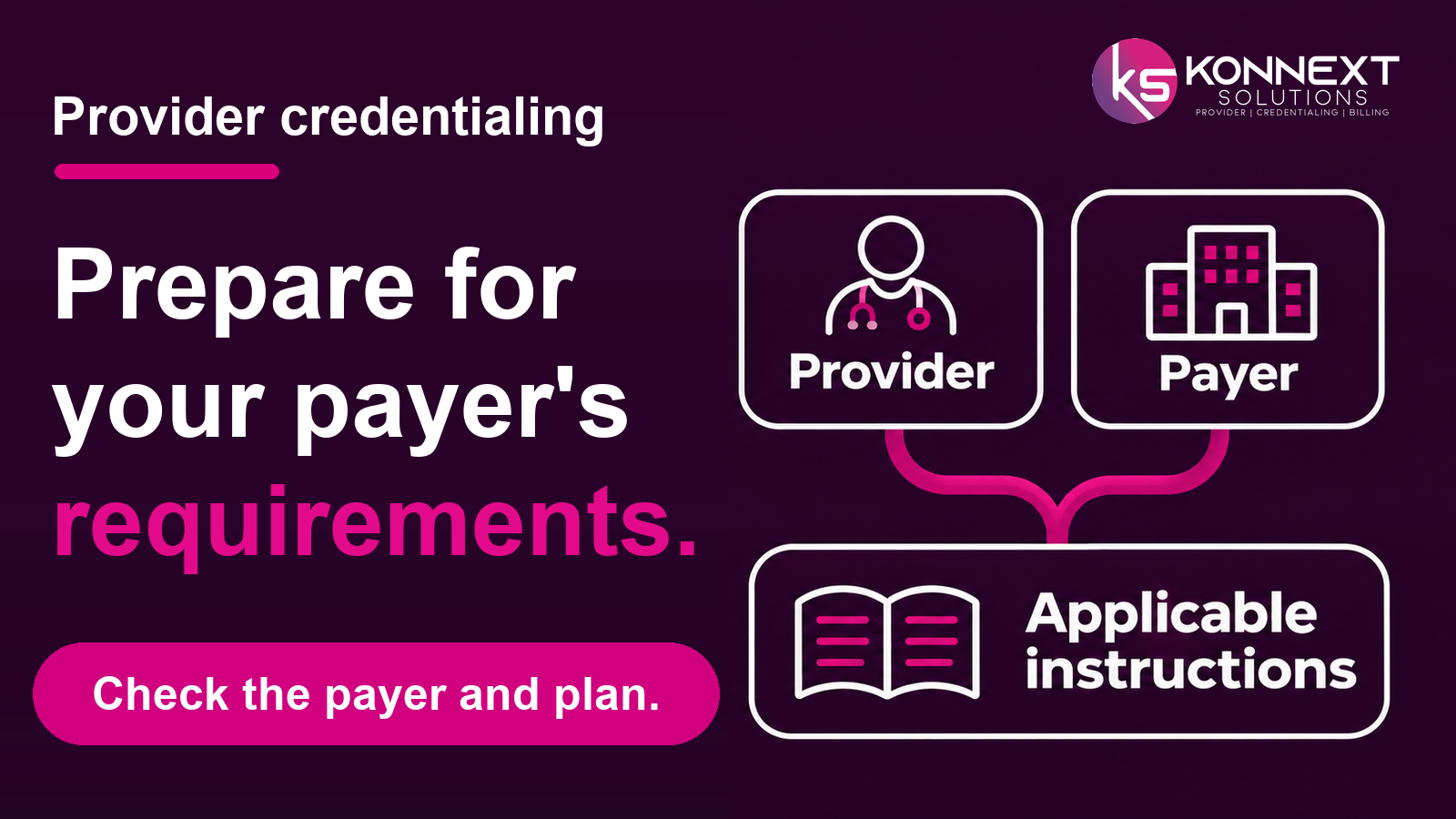
Check the provider, payer and plan.
Use the applicable instructions. A preparation file does not confirm submission, approval or participation.
The worksheet below can be read without submitting a request.
Applicable instructions
Start with the applicable instructions
Find the payer's current checklist or application instructions. Confirm whether the task concerns a new application, an existing-record change or renewal.
The worksheet below is an organizing aid, not a complete payer application or proof that a provider is eligible. Record sensitive information only in your practice's approved systems. Do not enter patient information, identity documents, tax or banking records, passwords or credentialing files into a public inquiry.
On-page preparation worksheet
Use the worksheet to prepare your next review
Review the applicable areas. Mark irrelevant items as not applicable. Keep unanswered questions open, with an owner and next check.
Where a payer uses CAQH, follow that payer's instructions for information and access authorization. Updating a profile alone does not establish that an application was submitted or that participation is active.
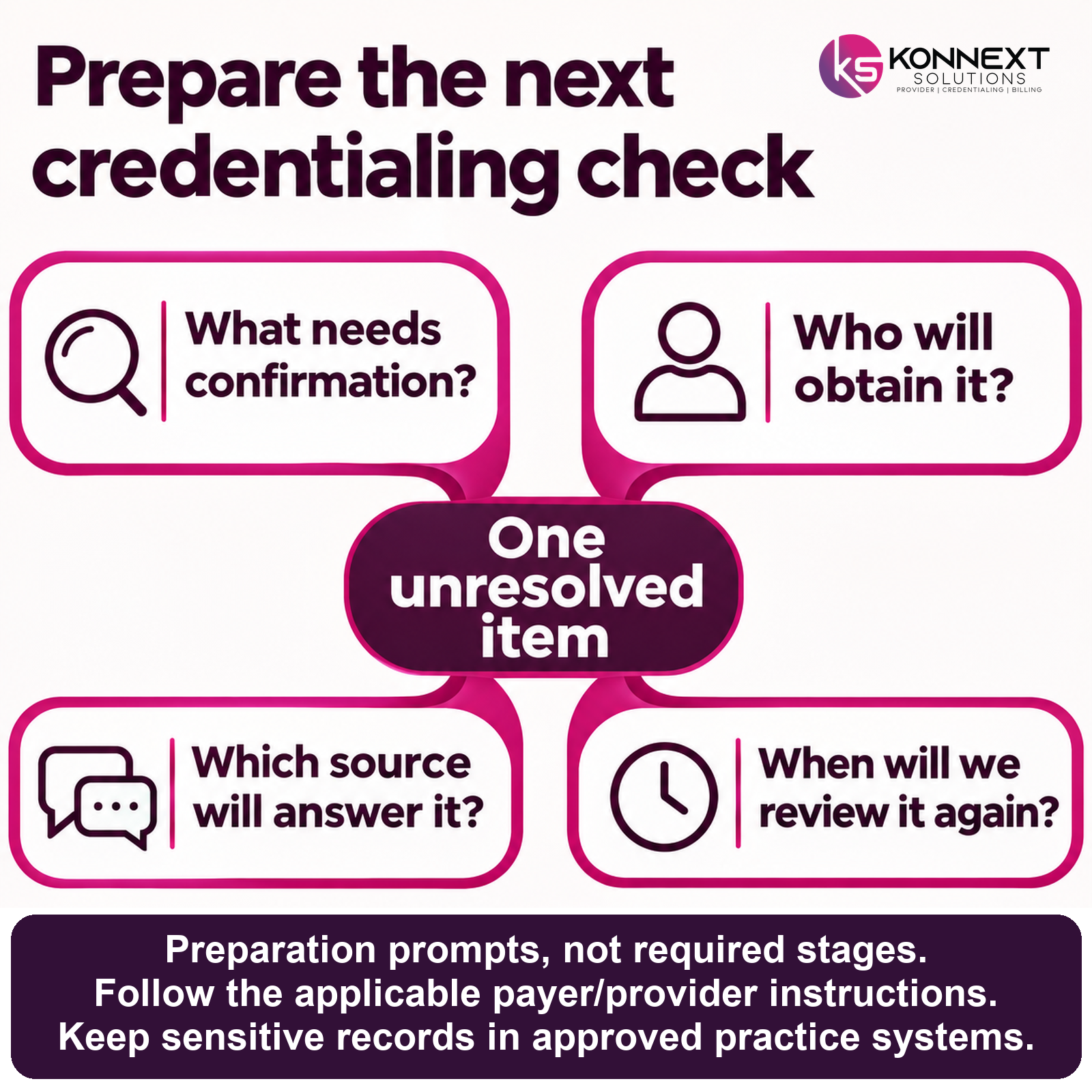
Choose one unresolved item.
What needs confirmation? Who will obtain it? Which source or payer response will answer it? When will we review it again?
Preparation prompts, not required stages. Follow the applicable payer/provider instructions and keep sensitive records in approved practice systems.
Use these nine review areas alongside the applicable payer instructions. They are preparation prompts, not required stages or a universal document list. Keep the working record in an approved practice system; this worksheet does not ask you to publish or send sensitive information.
For every applicable area, record a status such as confirmed, needs checking, waiting for a response or not applicable. Add the source and date of any confirmation, the responsible person and the next action. Avoid marking an item complete simply because someone sent a request.
Identify the actual task
Is the question about a new application, a provider joining a group, a location change, renewal or another record update? Describe the task in one sentence. Confirm the relevant payer and plan rather than relying on an insurer's brand name alone. Ask the payer which instructions apply when the route is unclear.
Find the instructions and practice reviewer
Keep the relevant checklist, application guidance or payer response with its source and review date. Identify who at the practice can approve the information before submission. If two instructions conflict, record the specific conflict and request clarification instead of choosing the most convenient version.
Review practice and location details
Compare the information requested by the payer with the practice's current authorized records. Check which entity, group and location the application concerns. If an address or relationship has changed, establish who will confirm the correct detail. Do not assume an update in one system has updated every other record.
Review current professional information
Check the professional information requested for the provider involved. For example, Aetna describes credentialing review of qualifications such as training and licensure. That example does not establish every payer's required fields. Flag unclear or inconsistent information for the provider or designated practice reviewer; do not fill gaps by guessing.
Identify the required supporting documents
Use the applicable instructions to decide which documents are required and whether the available versions meet those instructions. Record a missing or unclear item and its owner. Keep the actual documents in the authorized location, rather than attaching identity, financial or professional records to a general business inquiry.
Check CAQH only where it applies
If the payer uses CAQH, review the information and any access authorization that payer requests. Confirm the intended recipient before authorizing access. A profile update is not proof of payer receipt, a credentialing decision or participation. Do not share passwords through public forms, social comments or messages.
Confirm the submission route and authority
Identify the channel the payer accepts and who is authorized to use it. Resolve access questions through the practice's approved process. Keep a submission receipt or response where appropriate, and label what it actually confirms. Sending information and receiving a decision are different events.
Keep participation and effective-date questions separate
If an approval arrives, establish what it covers and which questions remain. Credentialing approval alone does not confirm payer participation. Ask the relevant payer about applicable participation and effective-date information; do not use the date a message arrived as a substitute. These checks alone do not establish complete billing readiness or guarantee payment.
Assign the next review
Summarize the remaining questions and name the person responsible for each next action. Agree when to check again without treating that review date as a promised payer response. Keep subsequent document changes and payer requests connected to the relevant record so the next reviewer can understand what is still open.
Finish with one useful action
Choose the most important unresolved item. What needs confirmation? Who will obtain it? Which source or payer response will answer it? When will we review it again?
Use this worksheet to organize the conversation. Follow current payer/provider-specific instructions and retain clinical, professional and agreement decisions with the appropriate responsible parties.
Considering support? Describe the general practice need and agree the work, responsibilities and records route before exchanging documents. Preparation does not guarantee a payer decision, effective date or payment.